



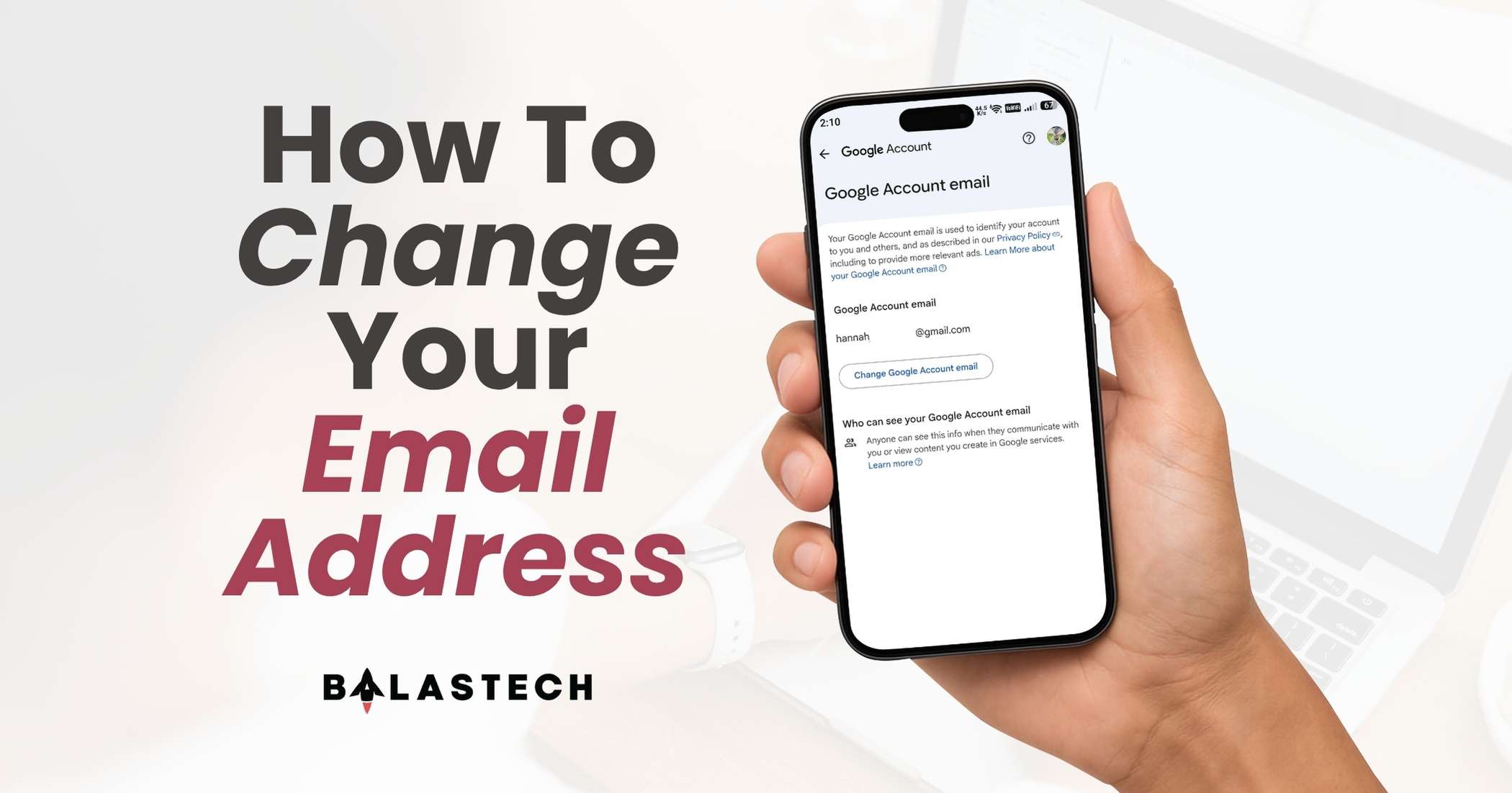
Want to change your Gmail address without creating an entirely new Google Account? Whether you’re switching to a more professional email, correcting an old username, or simply want a new address, Google may let you change the email address associated with your account.
Keep in mind that the available options may vary depending on your Google Account. If you don’t see the option to change your Google Account email, you may need to use a different method, such as creating a new Gmail address.
If the option is available on your account, you can complete the process directly through your Google Account settings. Here’s a step-by-step guide to help you change your Gmail email address.
How to Change Your Gmail Email Address
1. Open your Google Account
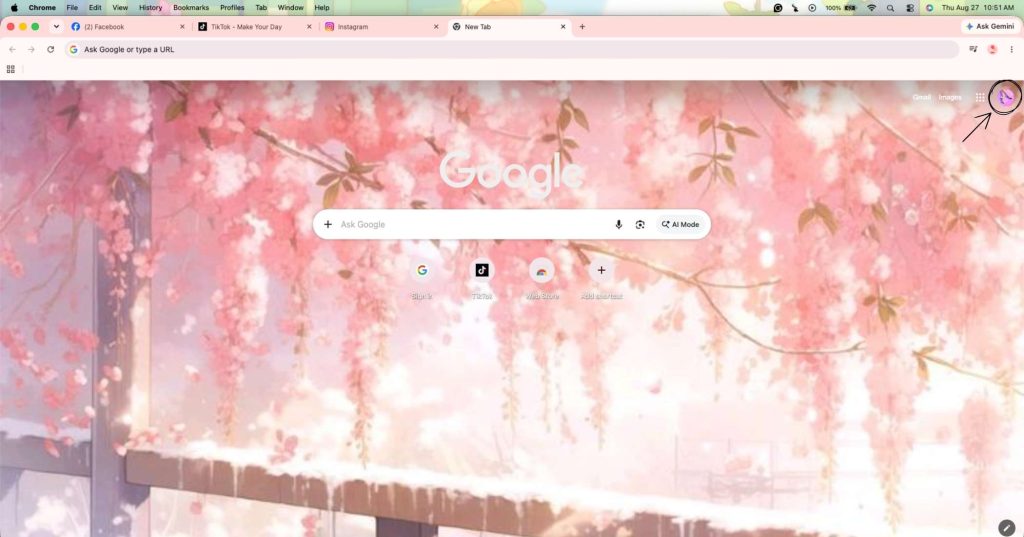
Go to the Google homepage and click your profile picture in the top-right corner.
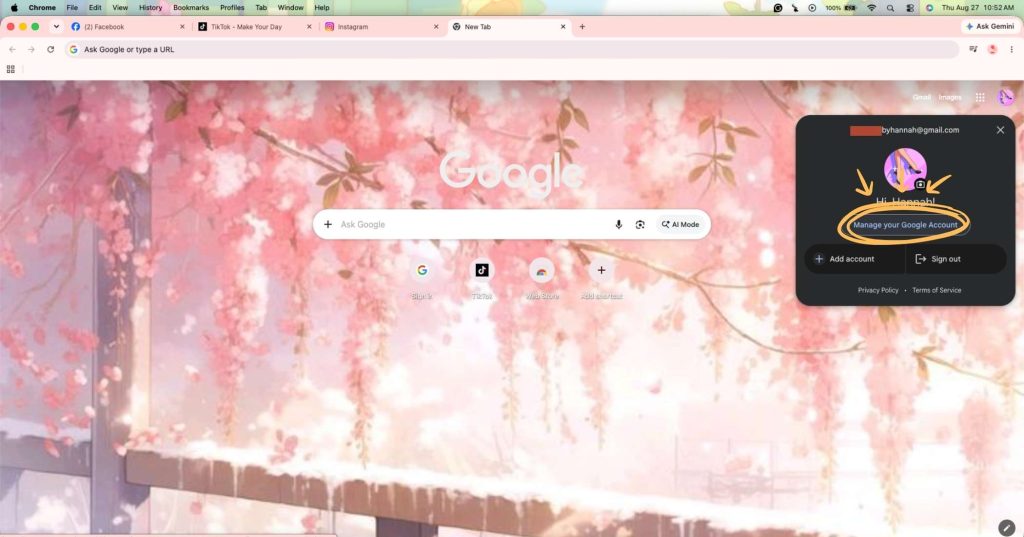
2. Select “Manage your Google Account”
From the menu that appears, click Manage your Google Account to open your account settings.
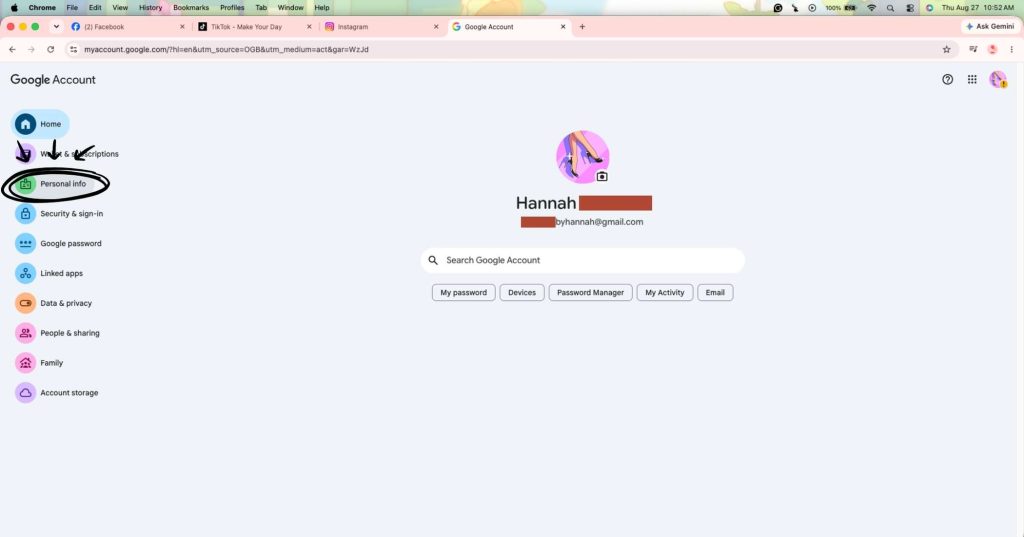
3. Go to “Personal info”
Once you’re in your Google Account, select Personal info from the menu.
4. Open the Email section
Scroll down until you find the Email section, then open it to view the email addresses connected to your account.
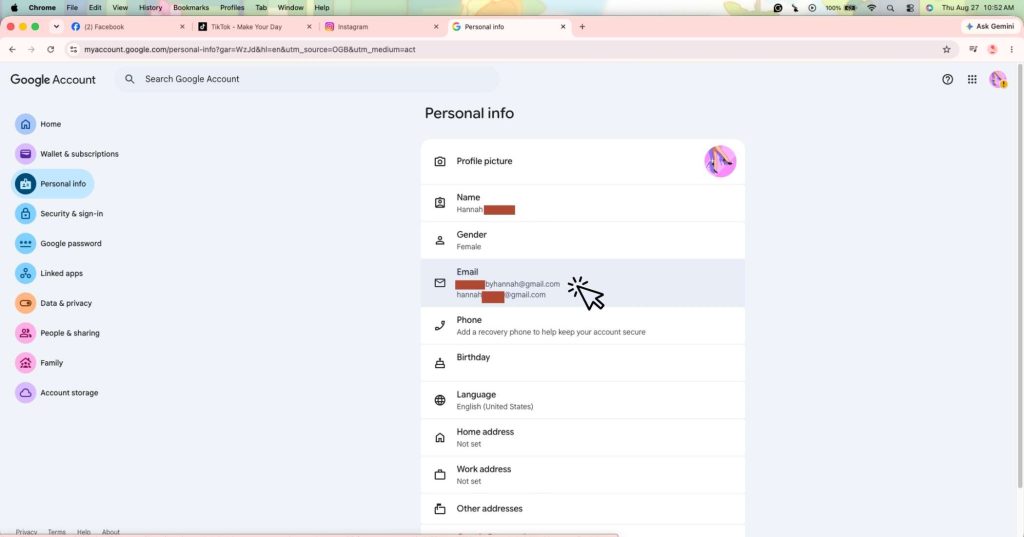
5. Select your Google Account email
Under Google Account email, click your current email address.
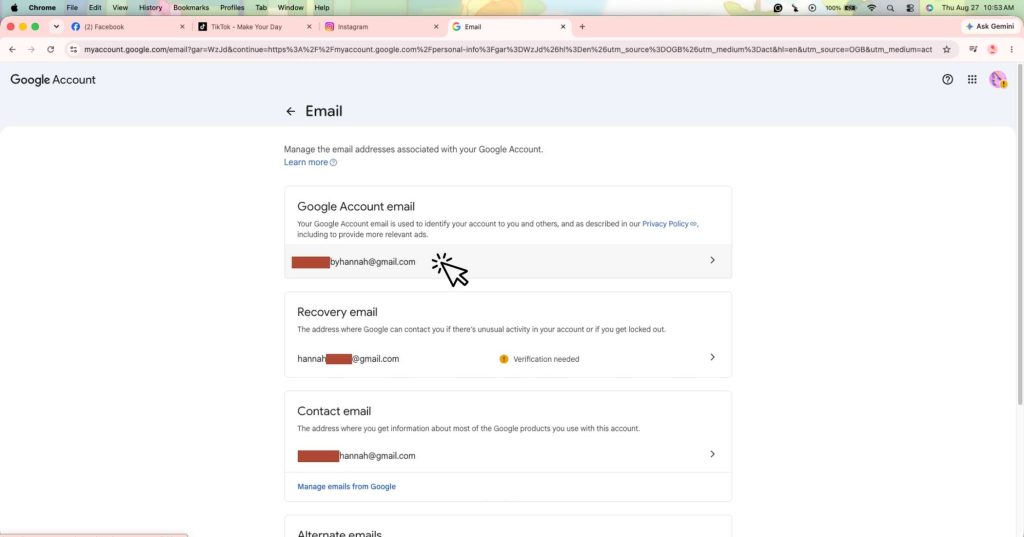
6. Verify your account
Before you can make changes, Google may ask you to verify your identity. Enter your password or complete the verification method shown on your screen.
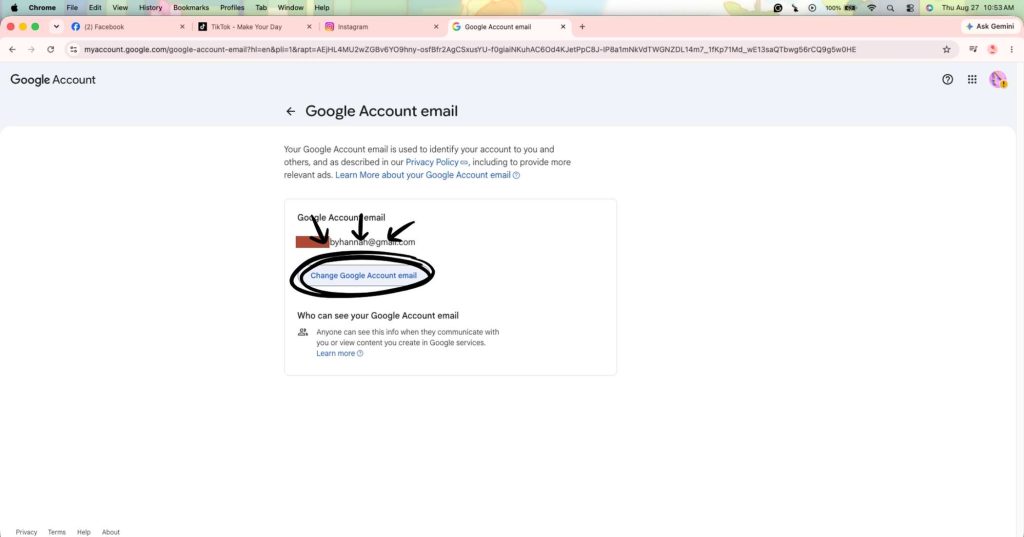
7. Select “Change Google Account email”
After verification, look for and select Change Google Account email.
If this option isn’t available, your account may not currently support changing its Google Account email address.
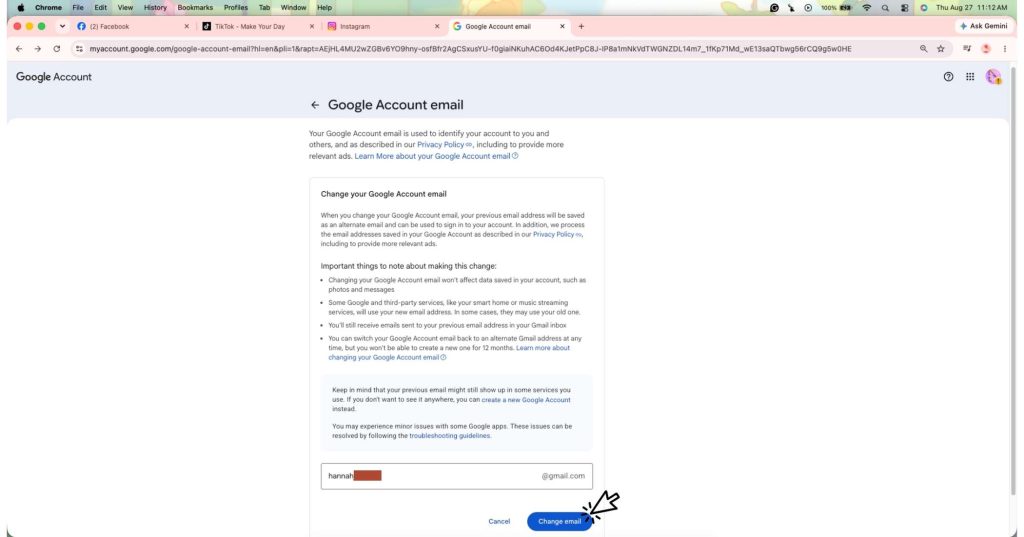
8. Enter your new email address and click “Change email”
Type in the new email address you want to use and click Change email. Make sure to check the spelling carefully before proceeding.
9. Confirm the change
Google will ask you to confirm the change. Tap Yes, change email, to finish the process.
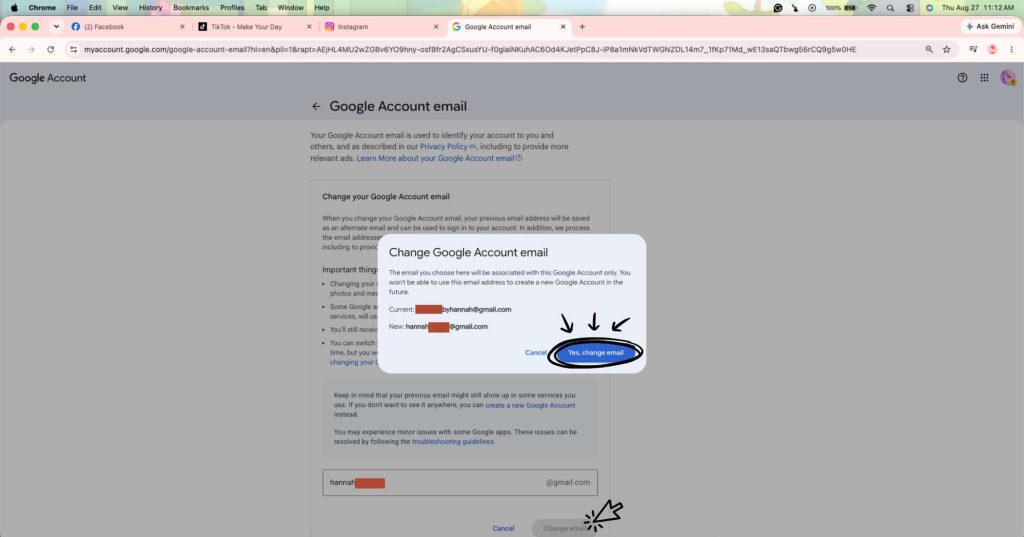
And that’s it! You now have a ready-to-use new Gmail address.
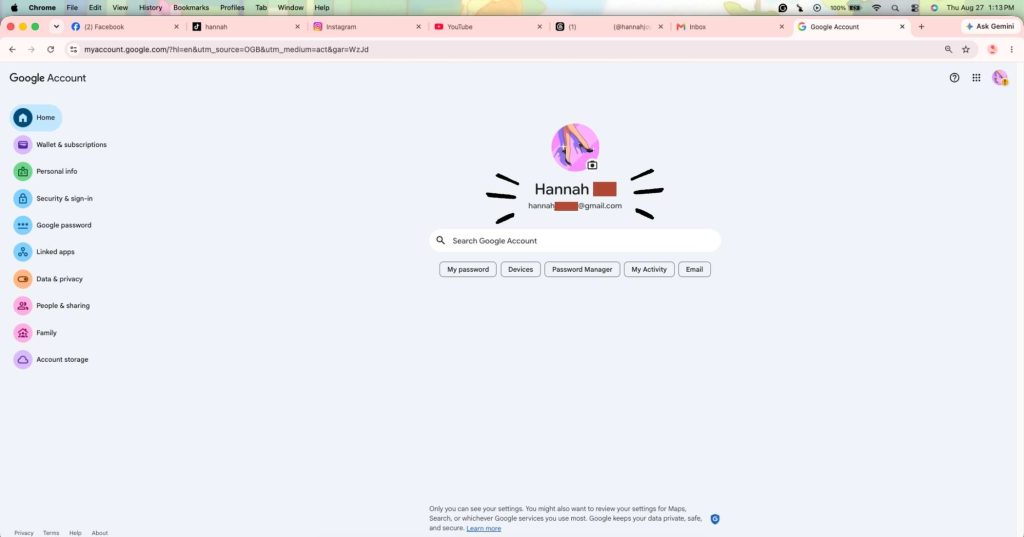
What Happens After Changing Your Email?
Once the change is completed, it’s a good idea to check the services and accounts where you commonly use your Gmail address. This includes online shopping accounts, subscriptions, school or work accounts, and other websites where your email is used as a login or contact address.
You should also update your email address with important services so you don’t miss notifications, verification codes, or account-related messages.
Frequently Asked Questions
Can I change my Gmail address without creating a new Google Account?
If your Google Account has the Change Google Account email option available, you can change the address without creating an entirely new account. However, this feature may not be available for every account.
Will I lose my Google Account after changing my email?
Changing the email address associated with your Google Account does not mean you have to start over with a new account. Your Google services remain connected to the same Google Account, subject to Google’s current account-change rules.
What if I don’t see “Change Google Account email”?
If the option doesn’t appear in your settings, your account may not be eligible for the change. In that case, you may need to continue using your existing address or create a new Google Account.
Should I update my email on other websites?
Yes. If you use your Gmail address for online accounts, subscriptions, shopping platforms, school, work, or other services, check whether you need to update your email address there as well.
Hope this helps, follow us for more tips and tutorials!
