



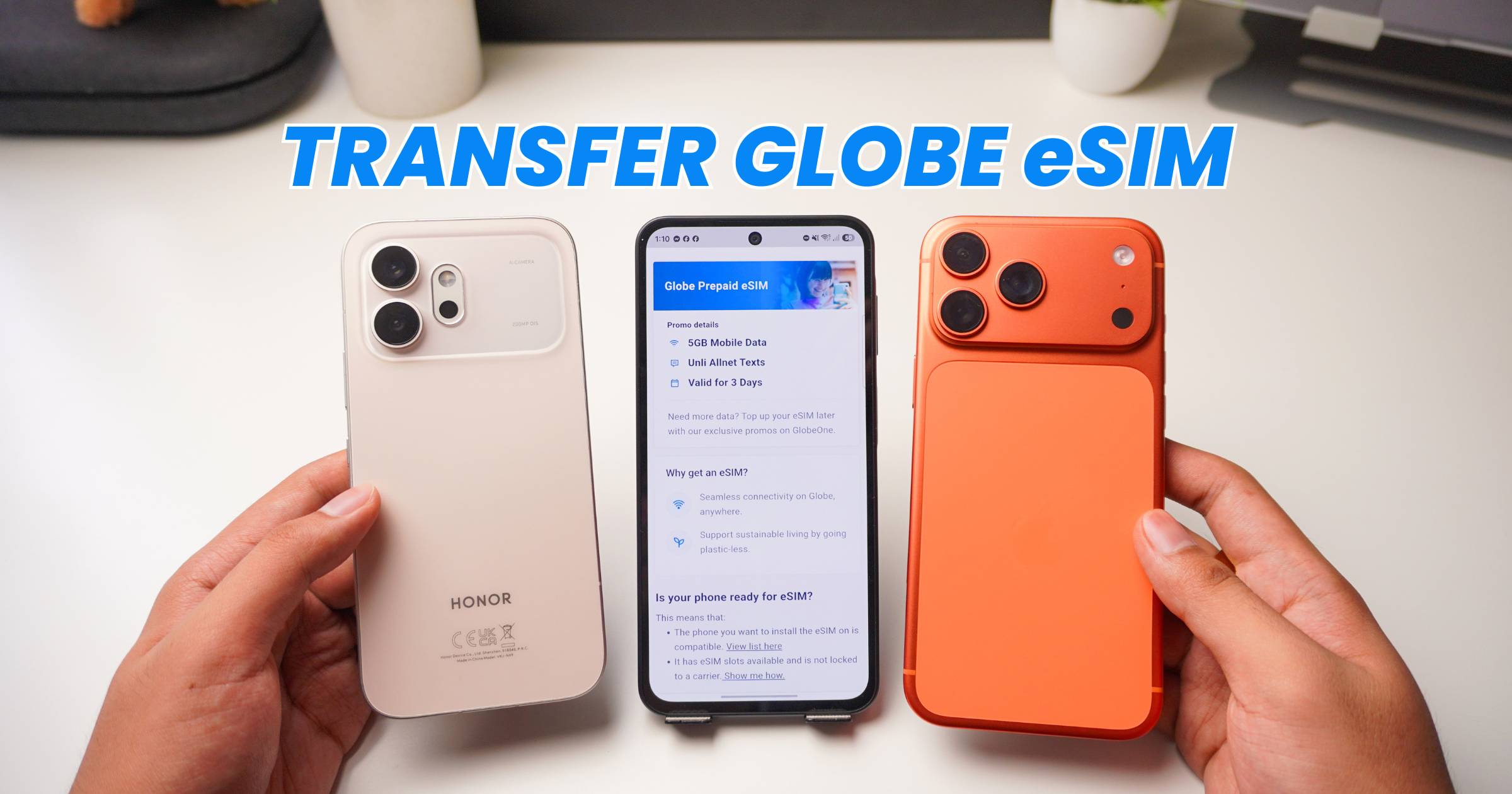
Here’s a quick tutorial on how to transfer Globe eSIM from your old device to another using the same QR code that was sent to your email when you purchased your eSIM. Please note that you have to check first if your new phone is eSIM-compatible.
Transfer Globe eSIM from Android to iPhone
On your Android phone
- Open Settings.
- Go to Mobile Network (or Network & Internet).
- Tap SIM Management.
- Select your Globe eSIM.
- Tap Disable, then Delete.
On your iPhone
- Open Settings.
- Tap Cellular.
- Select Add eSIM.
- Tap Use QR Code.
- Scan the Globe eSIM QR code from your email.
- Continue until finish.
Once the setup is complete, your Globe eSIM should already appear under your available cellular plans.
Transfer Globe eSIM from iPhone to Android
On your iPhone
- Open Settings.
- Tap Cellular.
- Select your Globe eSIM.
- Turn it off, then tap Delete eSIM.
On your Android phone
- Open Settings.
- Go to Mobile Network or Network & Internet.
- Tap SIM Management.
- Select Add eSIM or Add Carrier.
- Tap Set up an eSIM.
- Choose Scan QR Code.
- Scan the QR code from your Globe eSIM email.
- Click Set up, then tap Settings.
- Once installed, select your Globe eSIM and tap Enable.
Just follow the same steps for transferring from Android to iPhone in reverse. After the installation is complete, your Globe eSIM should be active and ready to use on your new Android device.
Step-by-Step YouTube Tutorial on How to Transfer Globe eSIM
Frequently Asked Questions
- Can I Reuse My Globe eSIM QR Code?
- Yes. You can reuse the original Globe eSIM QR code to transfer Globe eSIM to another compatible phone, as long as it has already been removed from your previous device.
- If you’ve deleted it or can no longer access the QR code, you’ll need to reach out to Globe Customer Support to request assistance.
- My Globe eSIM Isn’t Working. What Should I Do?
- Make sure the eSIM has been deleted from your old phone.
- Check if your new device supports eSIM.
- Verify that you’re scanning the correct Globe eSIM QR code.
- Try to restart your phone after completing the installation.
- If the issue still isn’t resolved, contact Globe Customer Support for further assistance.
More eSIM tutorials
Looking for guides for other networks? You can also check out our tutorials on:
How to Transfer eSIM to Another Phone
- How to Transfer DITO eSIM to Another Phone
- How to Transfer GOMO eSIM to Another Phone
- How to Transfer Smart eSIM to Another Phone
How to Convert a Physical SIM to an eSIM
- How to Convert Your DITO Physical SIM to eSIM
- How to Convert Your Globe Physical SIM to eSIM
- How to Convert Your GOMO Physical SIM to eSIM
- How to Convert Your Smart Physical SIM to eSIM
